


LocationSimulator
Choose a device, location, or route.
LocationSimulator2
LocationSimulator for iOS
Set a location, move manually, or follow a route on a physical iPhone, iPad, or iOS Simulator.
Runs on iOS, iPadOS, and Mac. Requires LocationSpoofer, running on a Mac, to reach physical devices and iOS Simulator.
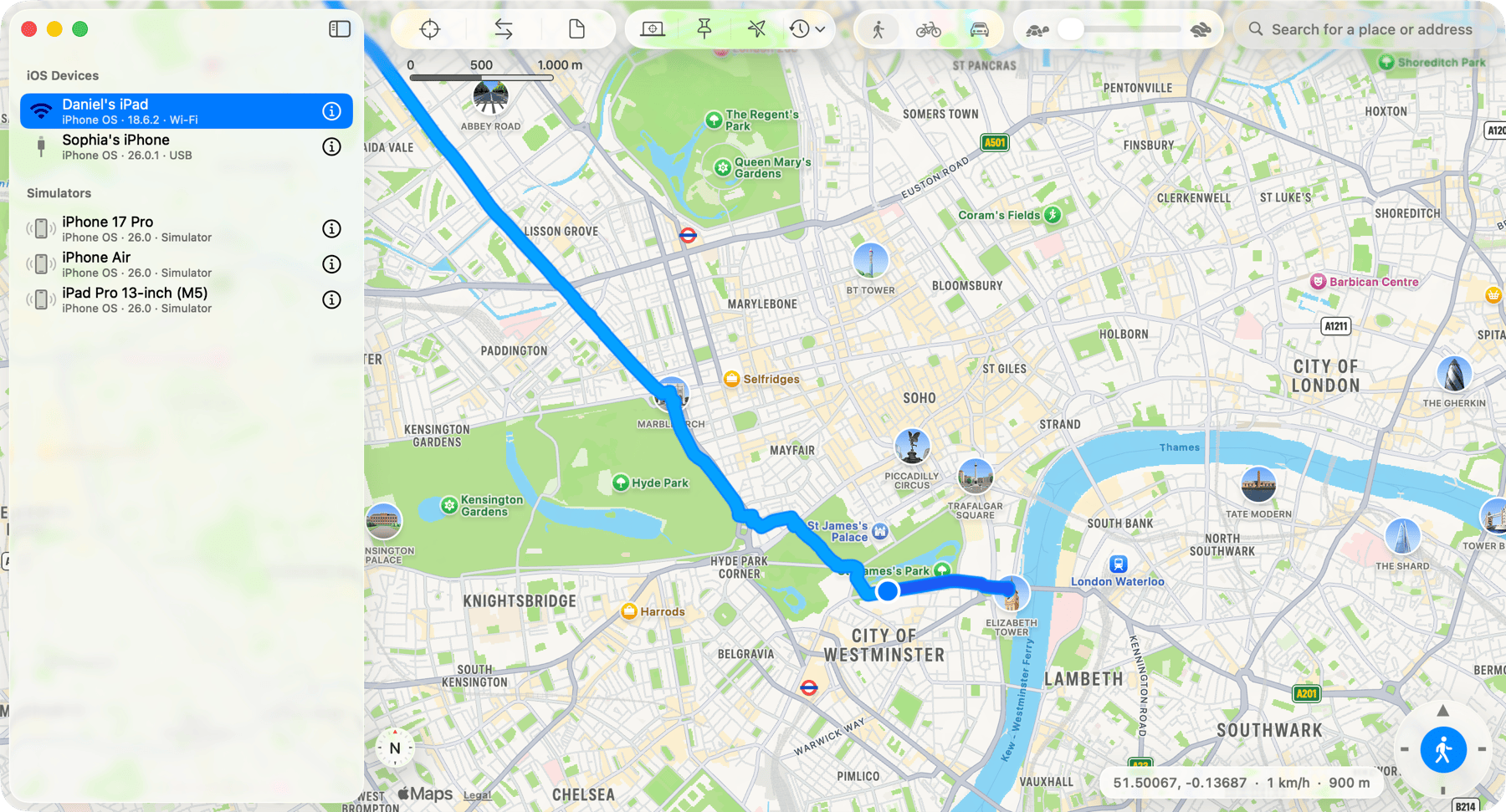
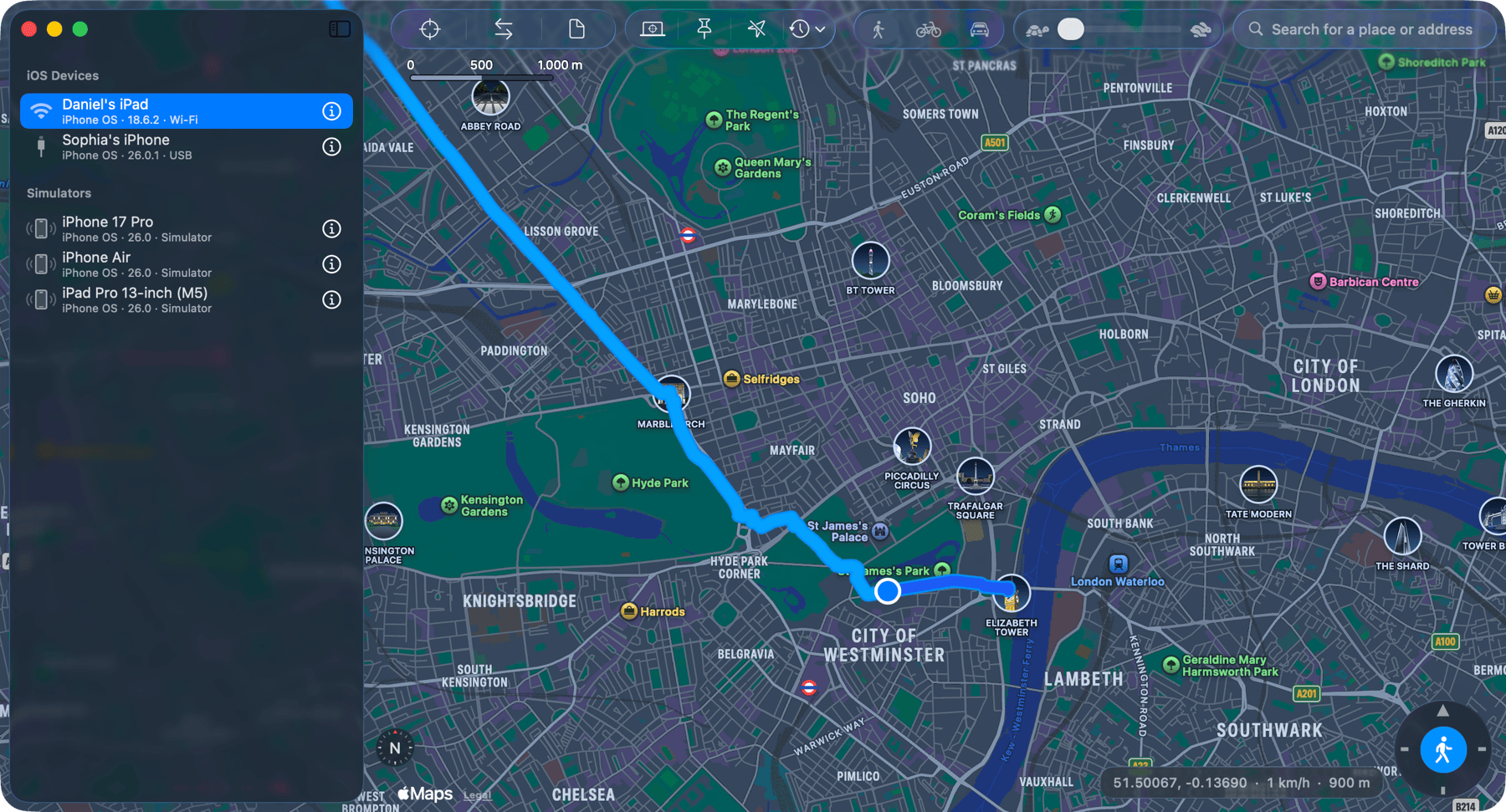
Two apps, one workflow
Choose a device, location, or route.

Applies it while both apps are running.
Get started
Physical device setup
Connect and unlock the device, accept its trust prompt, then pair it. A Wi-Fi connection only works after the Mac has a saved pairing record for that device.
iOS 16 and later require Developer Mode. The option should appear in Settings after the first preparation attempt shows the warning. You can also open the device information view with the information button beside the device. From Device Setup, ask LocationSimulator to reveal the setting, then follow the restart and confirmation prompts.
Basic use
Run both apps, then choose a connected physical device or running iOS Simulator from the sidebar.
Long-click a point on the map. The selected device immediately begins reporting that coordinate.
Choose Walk, Cycle, Drive, or a custom speed. Use the direction control or arrow keys, or long-click another point and choose Navigate Here.
Use Reset Location when the test is finished to return control to the device's normal location services.
AppleScript
Calculate a route, move to its start, drive to the destination, wait for arrival, then reset the device.
set startPoint to {48.1372, 11.5756}
set finishPoint to {48.1456, 11.5658}

tell application "LocationSimulator"
    set testMap to map view of first window
    set movement type of first window to drive
    set speed of first window to 50
end tell

tell application "LocationSpoofer"
    set testRoute to calculate route from startPoint ¬
        to finishPoint movement type drive
end tell

tell application "LocationSimulator"
    tell testMap
        relocate to startPoint
        start navigation route testRoute
        repeat while playback state is playback playing
            delay 0.5
        end repeat
        reset simulation
    end tell
end tell
Features
Spoof an iPhone or iPad without a jailbreak or an app installed on the device.
Use the same map and movement controls with devices running in iOS Simulator.
Automatically look for and download the DeveloperDiskImage files required by the connected iOS version.
Pair a physical device over USB first, then reconnect to it over Wi-Fi.
Long-click anywhere on the map to make the device report that coordinate.
Find a place or address and move the map directly to it.
Calculate a route from the current location and simulate traveling along it.
Use custom speeds or switch between the predefined Walk, Cycle, and Drive modes.
Move and change direction with the arrow keys while testing.
Follow the current macOS appearance or choose the app appearance yourself.


